 2 min read
Schedule a broadcast for later
Pick a future date and time instead of going live right now — Loopcast creates the real YouTube broadcast the moment that time actually arrives.
Fill in details, then Schedule for later
Fill in your broadcast details exactly like a normal Go Live, then use Schedule for later instead and pick a date and time. This requires a connected YouTube account — it isn't available with a manual stream key, since Loopcast needs to create the actual broadcast at the right moment automatically.
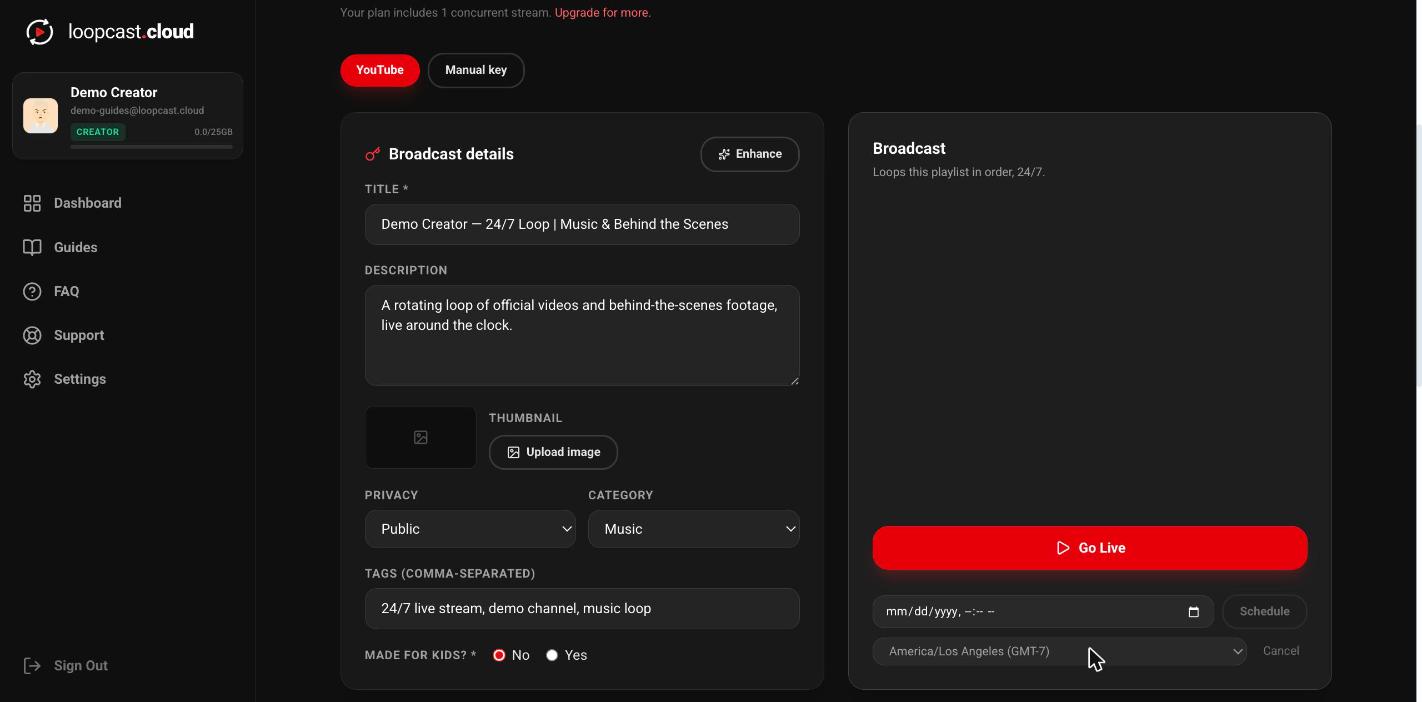
On desktop
Nothing happens on YouTube until it's time
Loopcast doesn't create anything on YouTube's side the moment you schedule — the broadcast is only actually created once your chosen time arrives, checked roughly every minute. You'll get an email the moment it goes live.
Changing your mind
A scheduled broadcast can be canceled any time before it fires, right from the same panel where you set it up. Canceling doesn't touch your playlist or videos — you can schedule again or just click Go Live whenever you're ready.
Worth knowing
- ·Scheduling needs at least a couple of minutes of lead time — anything scheduled for right now or a few seconds out may get missed by the once-a-minute check.
- ·You can edit broadcast details right up until the scheduled time actually arrives.
- ·This works the same on every plan, as long as your YouTube account is connected.
Set a custom thumbnail