 2 min read
Connect your YouTube account
Link the channel you plan to stream to — Loopcast then creates and manages the broadcast for you, no stream key to copy.
Why connect at all
You don't have to — a plain stream key from YouTube Studio works on any plan, on any channel, connected or not. But connecting your YouTube account (also free on every plan) lets Loopcast create the broadcast itself: title, description, privacy, and scheduling, all set from your dashboard instead of copy-pasted between two tabs.
It also unlocks things a manual key can't: custom thumbnails (free on every plan), plus real stream stats and AI title/description suggestions (Creator & Pro).
Connect it
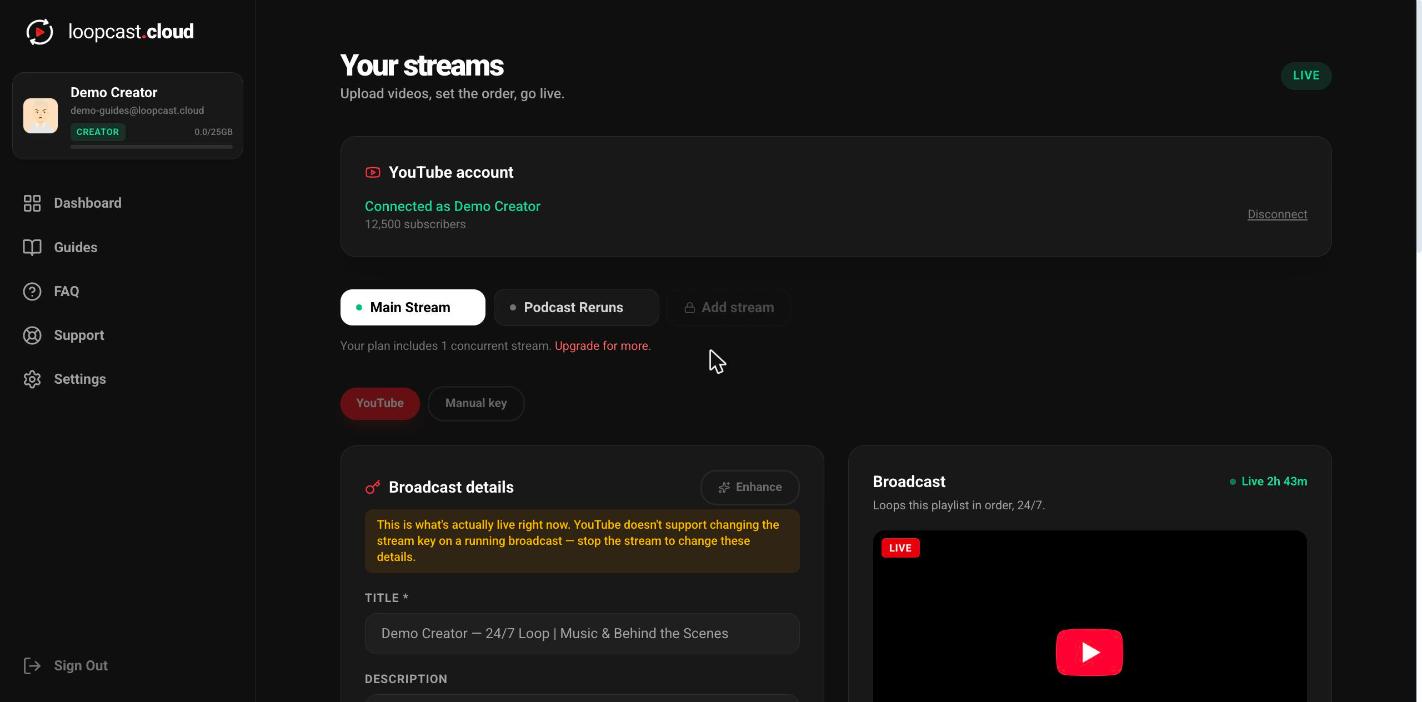
From Your streams, the YouTube account card shows Connect if nothing's linked yet. Click it, sign in with the Google account tied to the channel you actually want to stream to, and approve the permissions Loopcast asks for — it needs enough access to create and manage live broadcasts on your behalf.
On desktop
What it looks like once connected
The card shows your channel name and subscriber count in green, plus a Disconnect link if you ever need to switch accounts. Every stream on your account can independently use this connected channel or its own manual key — see the Manual key guide for that toggle.
Worth knowing
- ·Use the Google account that actually owns the channel — not a personal account with manager access, unless that's genuinely how your channel is set up.
- ·Disconnecting doesn't delete anything on YouTube. It just stops Loopcast from being able to create new broadcasts until you reconnect.
- ·A brand-new channel usually needs live streaming enabled in YouTube Studio before its first broadcast — see the Go Live guide's troubleshooting section if you hit that.
Upload videos & build your playlist