 3 min read
Upload videos & build your playlist
Your video library is shared across your whole account — build each stream's 24/7 rotation by adding whichever videos belong in it.
Upload one or many at once
Upload video accepts multiple files in one go. Each one gets its own progress bar with its file name shown above it, so a batch upload stays easy to follow — no guessing which bar belongs to which file.
Whatever you upload gets automatically converted to a consistent, stream-ready format in the background. Most common formats work fine; very large or unusual files just take a little longer to finish processing.
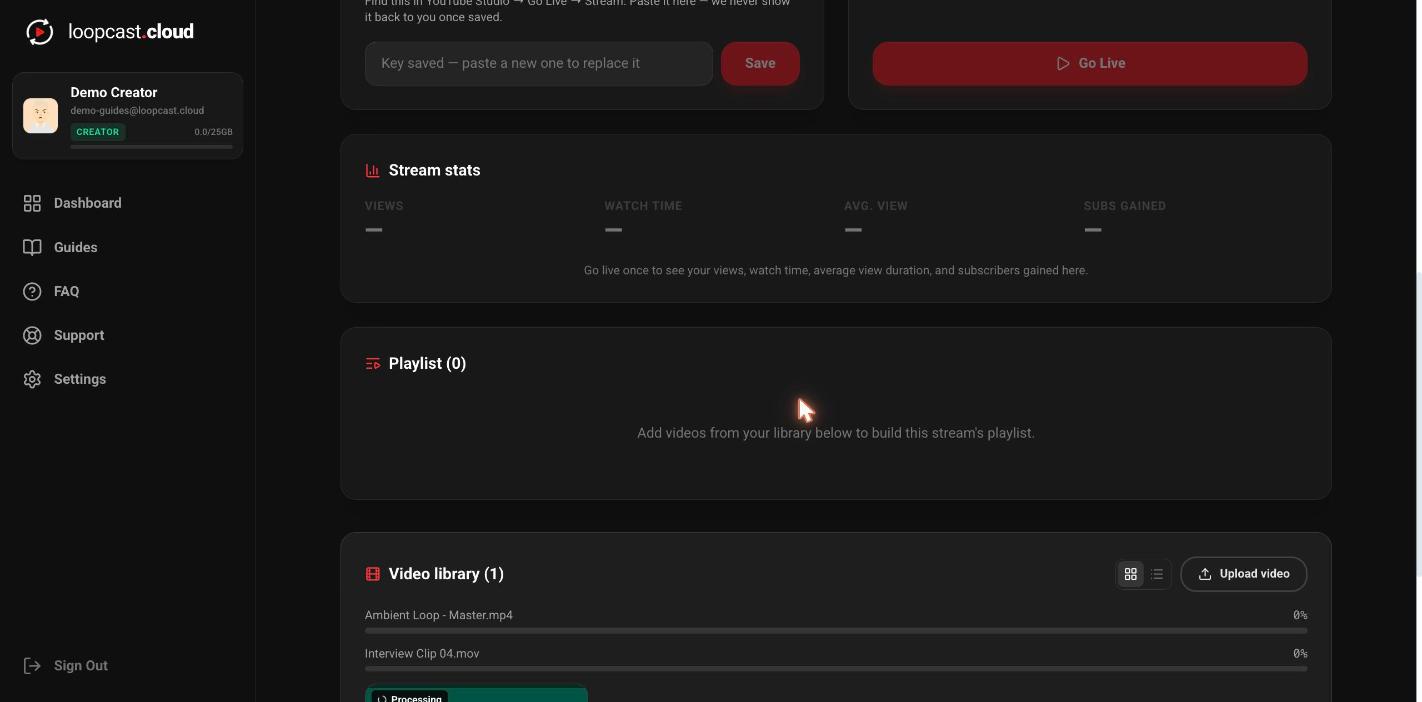
On desktop
The library is account-wide, not per-stream
Video library holds every video you've uploaded, no matter which stream (or streams) it's used in. Upload once, then add that same video to any stream's playlist — or several at once, if you're running more than one loop (Pro).
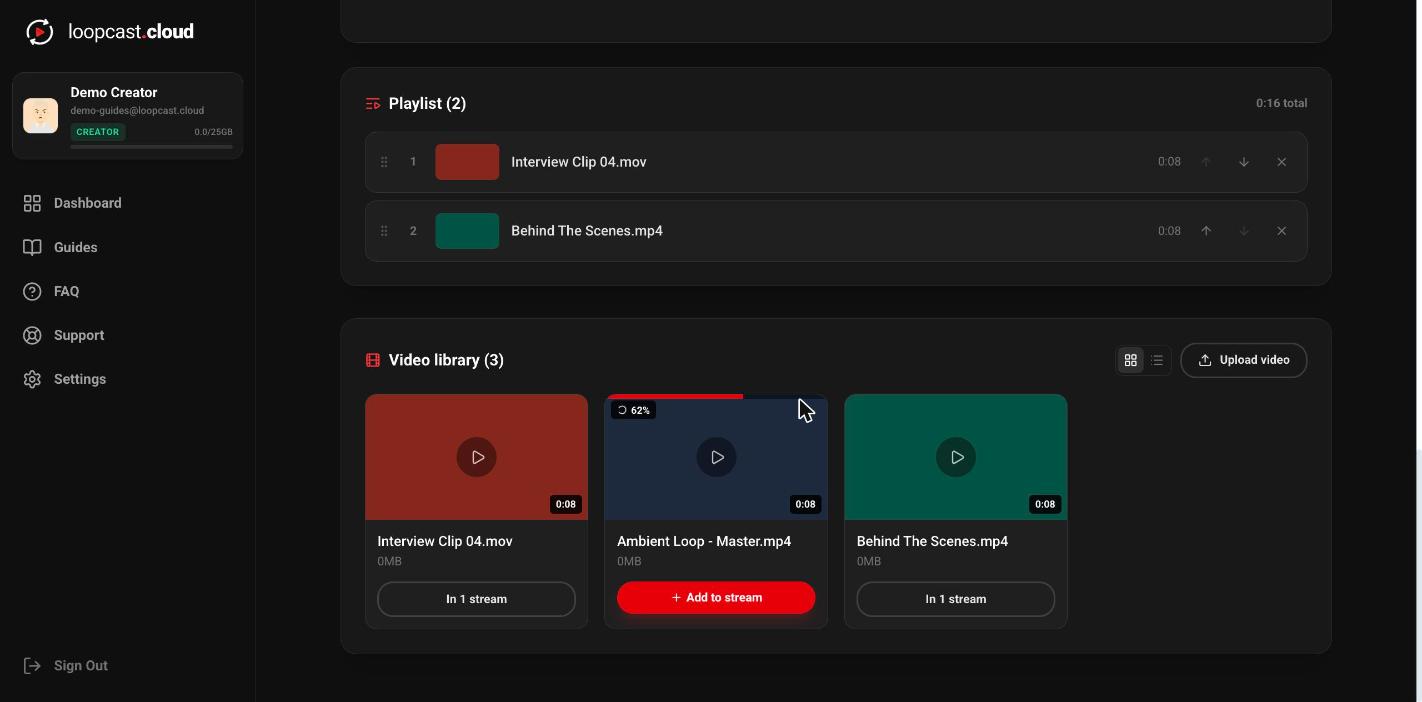
On desktop
Build the playlist for a specific stream
Each stream tab has its own Playlist — the actual 24/7 rotation, in order. Add a video from your library, then drag it (or use the up/down arrows) to set where it plays in the loop. The total runtime updates as you go, so you always know how long a full cycle takes.
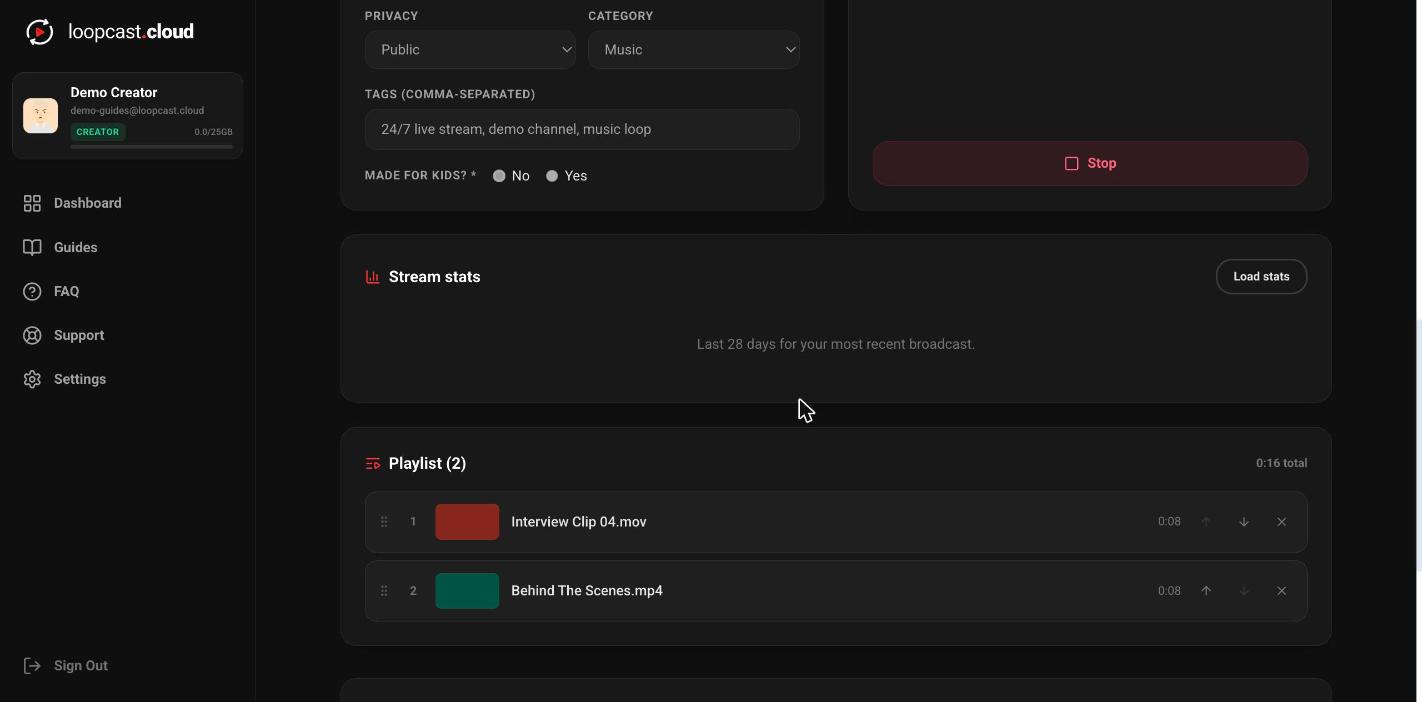
On desktop
Changes apply live, automatically
None of this requires stopping the stream. Upload a new video, add it to the playlist, drag it into a new position, or trim an existing clip while a stream is already live — Loopcast just picks up the change at the end of whichever clip is currently playing. No Stop, no re-clicking Go Live.
Worth knowing
- ·A video only counts once toward your storage quota, based on the file you originally uploaded — using it in multiple playlists doesn't multiply that.
- ·MP4 (H.264) is the safest bet for fast processing, but you don't need to convert anything yourself first.
- ·Removing a video from a playlist doesn't delete it from your library — it's still there to add to another stream later.
- ·You can drag-and-drop reorder, add, or remove videos on a live stream's playlist at any time — it never needs to be stopped first.
Go live