 2 min read
Trim a video
Cut a video down to the part you actually want in your loop, right from the video library — no separate editor needed.
Open the preview
Click the play icon centered on any video's thumbnail in your library. That opens a preview with a poster image and a big play button — click it to actually play the clip.
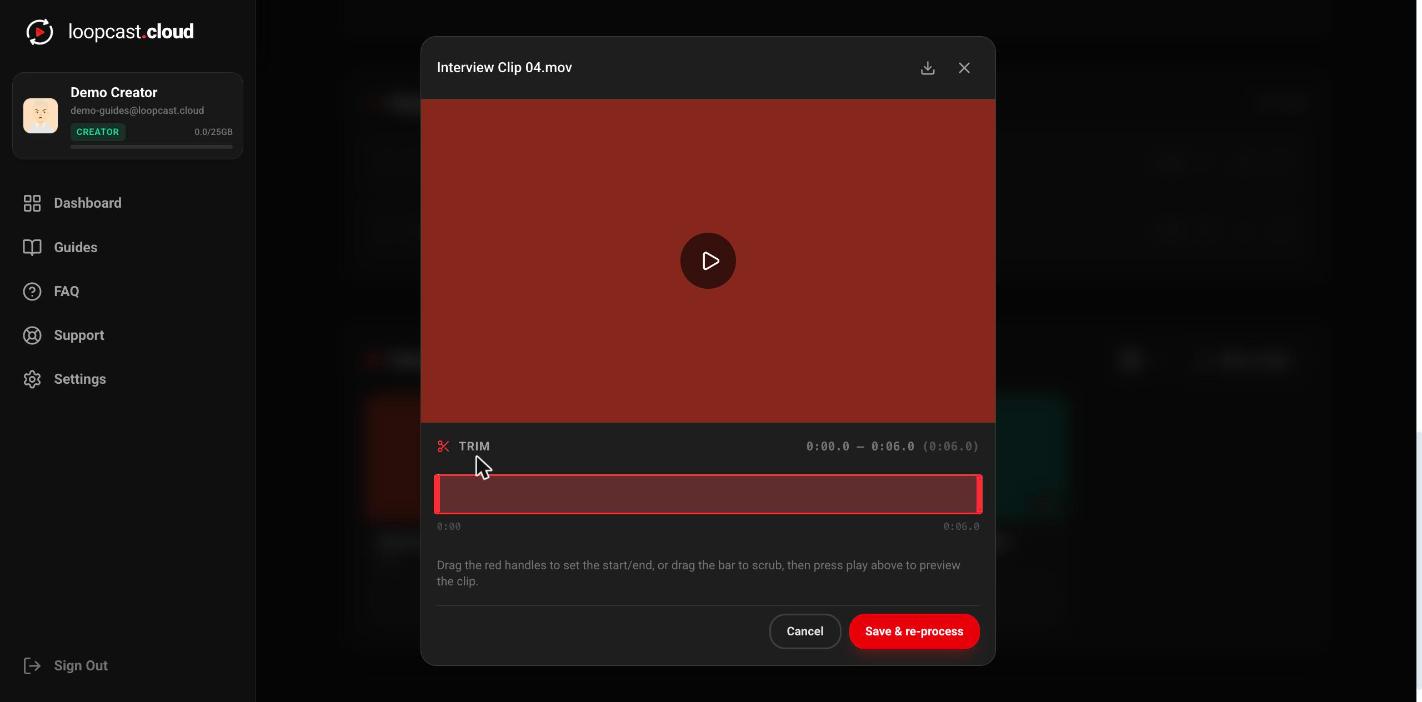
On desktop
Drag the handles to set your trim
Below the preview, drag the red start and end handles to set exactly where the clip should begin and end. Drag anywhere along the bar to scrub and preview a specific moment; pressing play plays back your current selection, not necessarily the whole file.
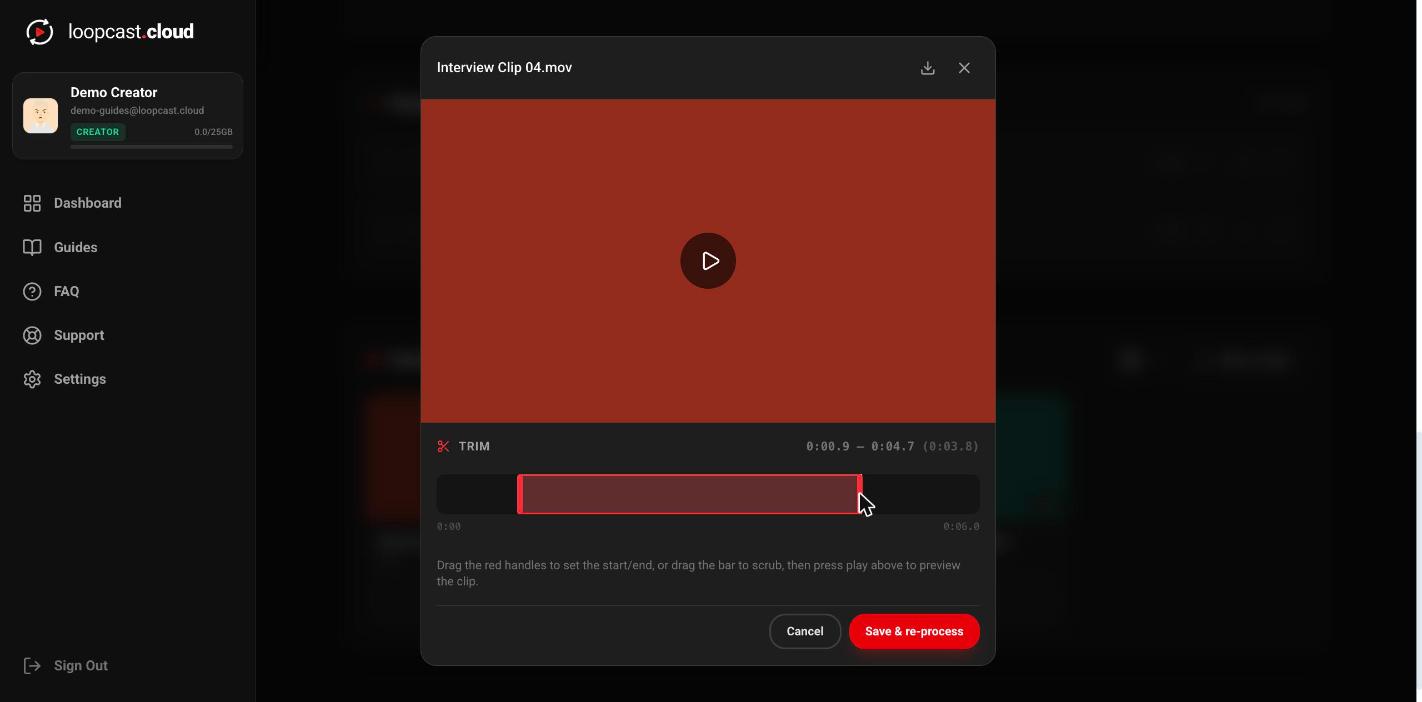
On desktop
Save & re-process
Saving re-processes the video in the background with your new in/out points. If it's already in a live stream's playlist, the trimmed version takes over automatically at the next clip boundary — you don't need to touch Go Live again.
Worth knowing
- ·Trimming is locked while a video is mid-processing — the worker already read the old cut points into memory the moment it started that job, so a change saved mid-encode would just be ignored. Wait for it to finish, then trim again.
- ·Trimming doesn't create a second copy taking up extra storage — it re-processes the same video in place.
- ·You can re-trim as many times as you want; each save re-processes from the original upload, not from the previous trim.
Schedule a broadcast for later